Interactive Apps
The ARCC now provides remote interactive sessions for selected graphical applications! You can request an in-browser session for applications in Stokes or in Newton with GPU acceleration. Please note that this is provided as a convenience if your workflow requires it, we still recommend users to use headless submission scripts for command-line software that supports it.
These Interactive Applications provide a controlled environment to run pre-configured configurations for selected graphical applications such as CAD and CFD tools. To run a generic desktop environment to configure your own programs, refer to Remote Desktop instead.
There are two types of Interactive Apps available:
-
GUIs: these apps start a remote desktop session and you can control it through an in-browser instance of noVNC.
-
Servers: these apps run web-native applications accessible through your browser.
Starting an Interactive App
-
In the navigation bar, go to
Interactive Appsand select the application.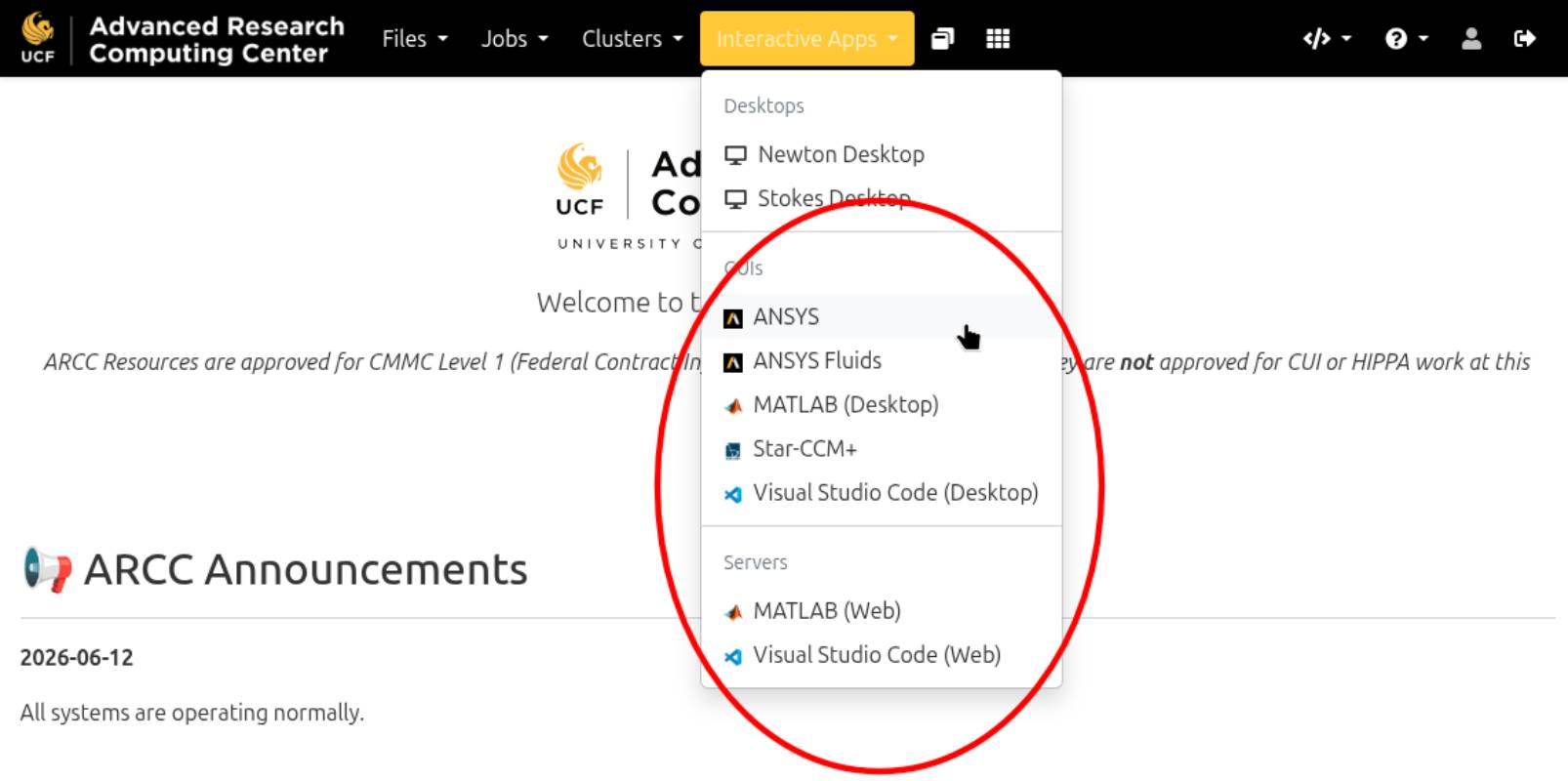
-
In the application setup, you may adjust certain job resource parameters such as number of threads and maximum job time, as well as application-specific configuration such as licensing if required. Click
Launch. The session will wait in a queue depending on availability, you may opt into receive an Email notification when the session is ready.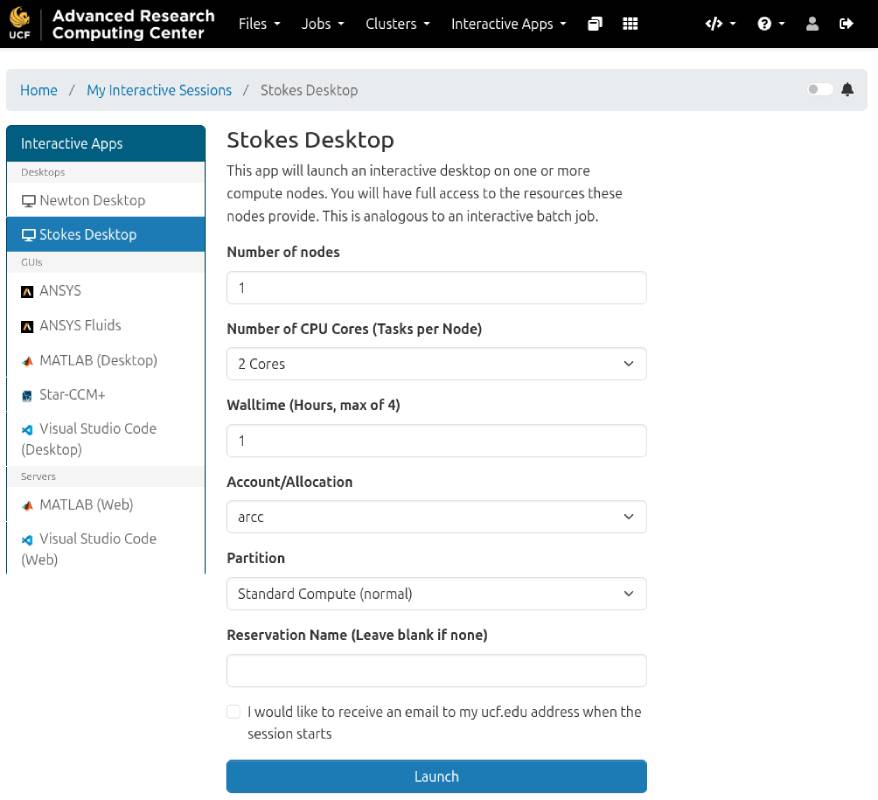
-
Proceed to the next section to know how to enter your Desktop session.
Resuming an Interactive App
Interactive Apps will remain running and allocate even if no browser is connected, allowing users the flexibility to resume the session in case the browser crashes or get disconnected from the internet. Please note that, as with any interactive jobs, the remaining job time will continue to decrease even if no browser is connected. When the job time expires all programs within the Interactive App session will close and you'll need to request a new session, so save your work often!
-
In the navigation bar, go to
My Interactive Sessions.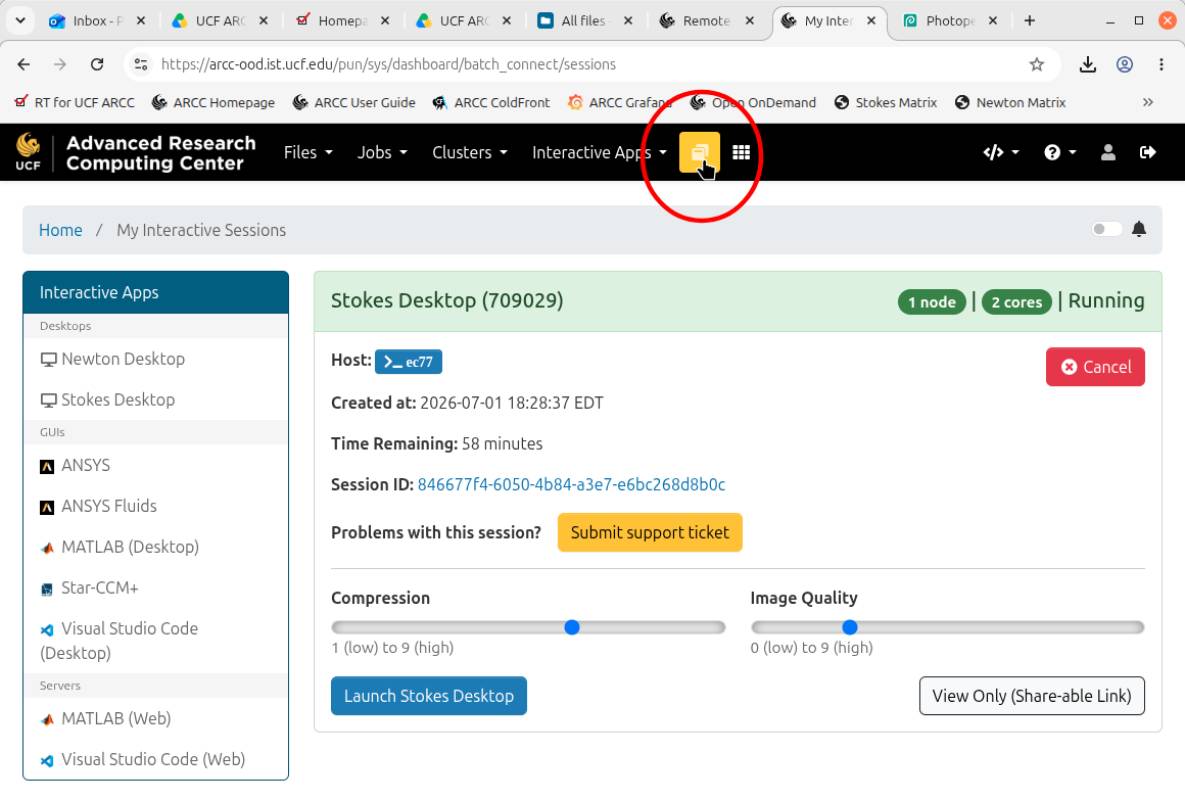
-
You may adjust your image quality depending on your internet connnection. Click
Launch Desktop, and you'll be taken to a browser viewer, powered by noVNC. By default we offer the Xfce Desktop with a small selection of utilities, users can open a terminal window, load modules, and run interactive programs that way.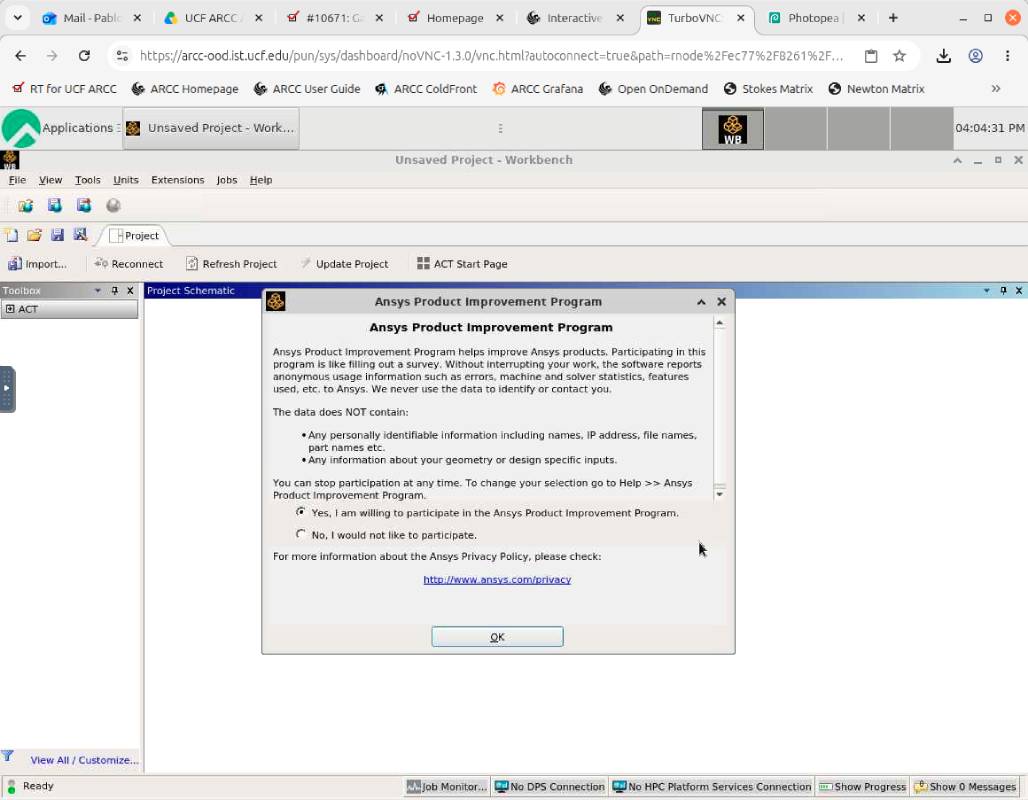
Quitting an Interactive App
As the job will continue to run in the background, it's important to ensure your job is stopped when you're done working to make the most efficient use of shared cluster resources. There are two ways to quit a desktop:
A) For GUIs apps, from within the application session, exit all programs and close all windows.
B) For all apps, from within the Open On-Demand interface:
-
Click
My Interactive Sessionsin the navigation bar. -
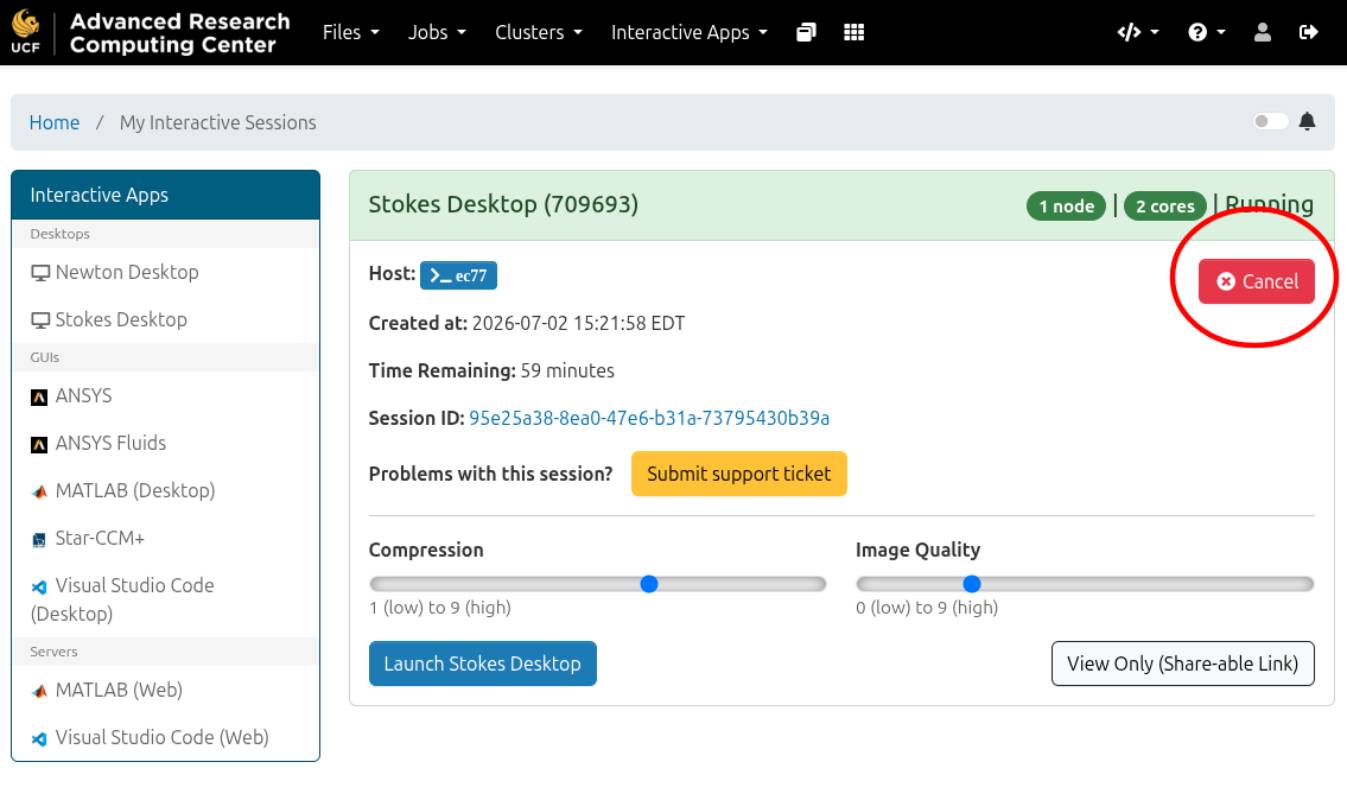
Click
Cancelnext to the card corresponding to the job.